> ## Documentation Index
> Fetch the complete documentation index at: https://pulses.mintlify.site/llms.txt
> Use this file to discover all available pages before exploring further.
# Debugging
> Check out events and logs to debug your application
## Viewing Events in your Dashboard
To view events in the Pulses dashboard, follow these steps:
1. Go to the [Pulses dashboard](https://pulses.cloud/dashboard).
2. Click on the **Debug** tab.
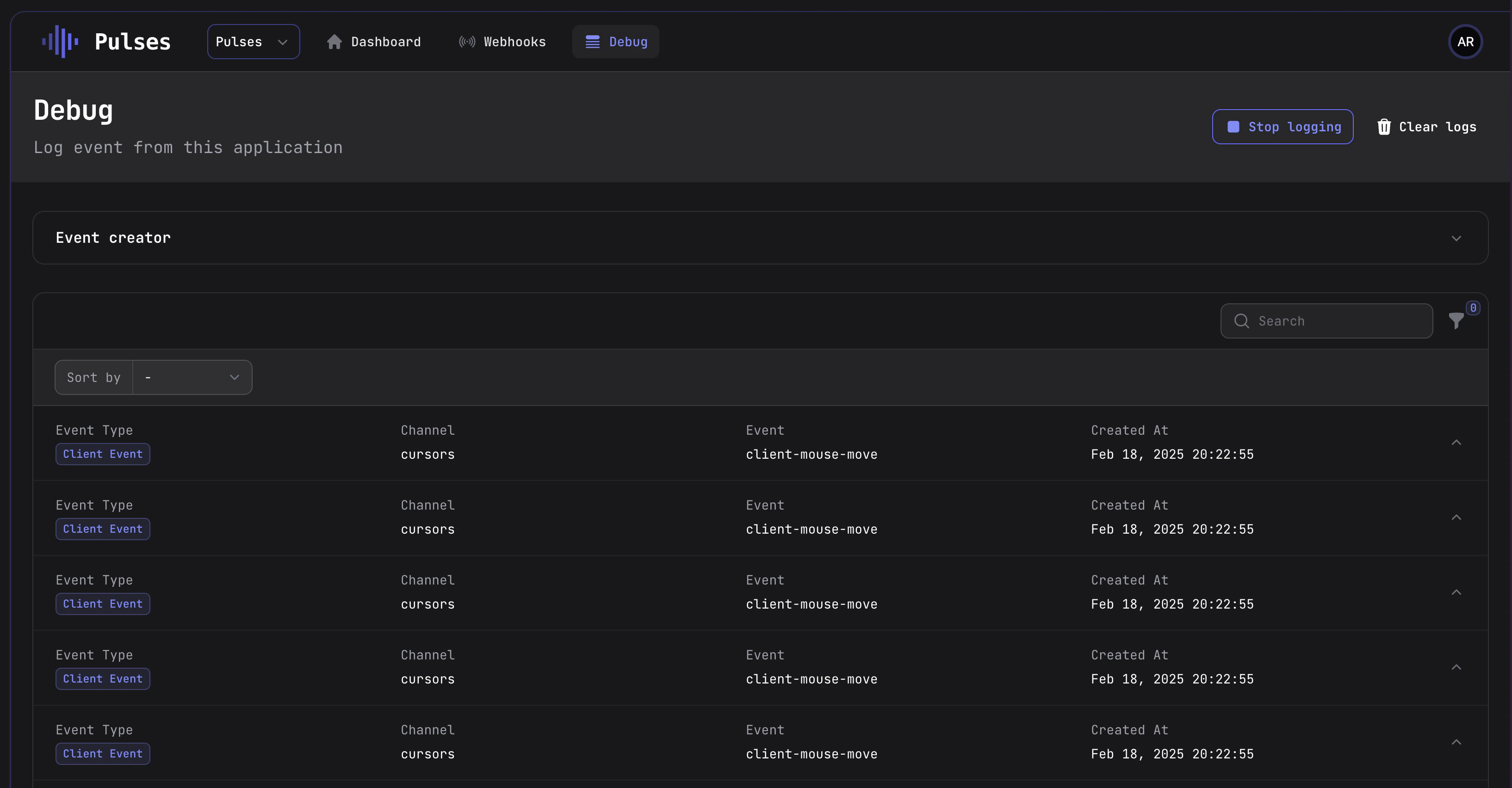
3. Start logging by clicking on the **Start Logging** button.
Once connected, you can monitor the opening and closing of connections, the creation of subscriptions, the occupancy and vacancy of channels, the reception of messages by our API.
This feature is particularly useful during development or when troubleshooting issues with your application's features.
You can also filter events by channel and event types.
 ## Sending test events using the Event Creator
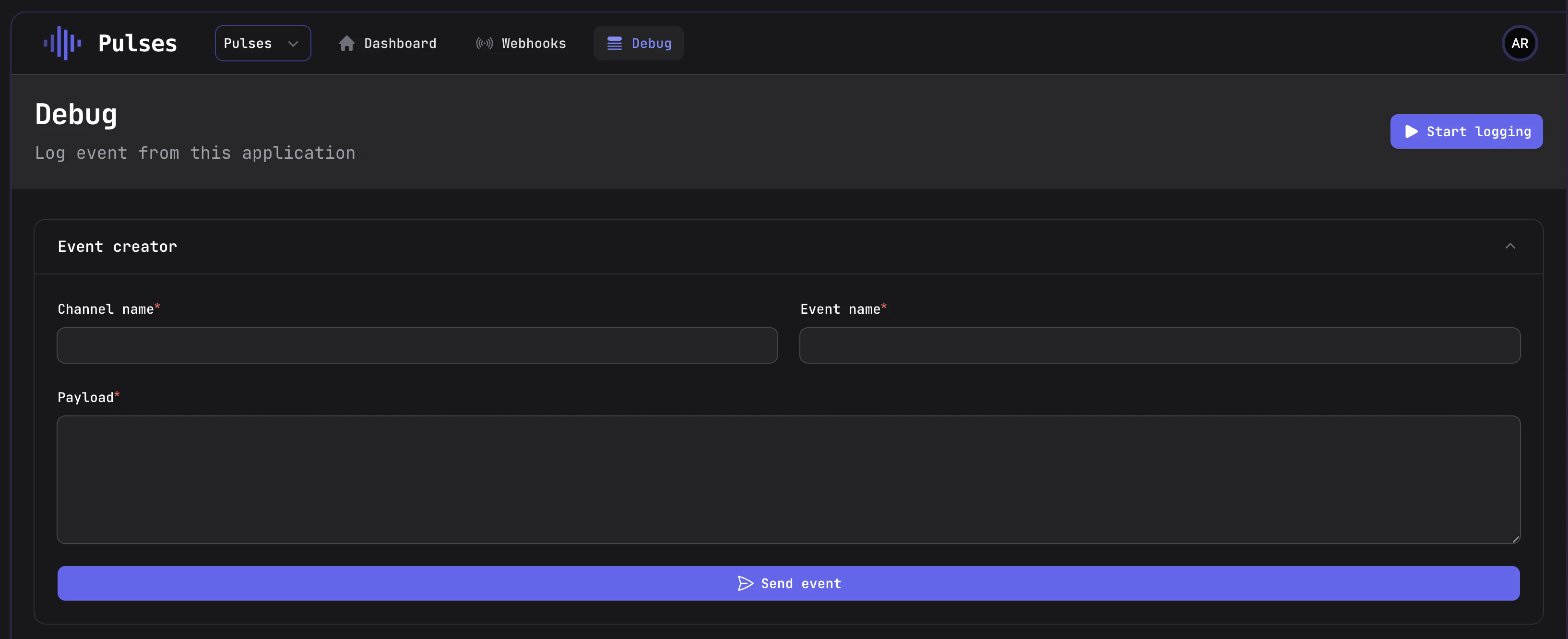
The Event Creator is a tool that allows you to send test events to your application. This feature is particularly useful for testing your application's features or debugging issues.
To send test events using the Event Creator, follow these steps:
1. Go to the [Pulses dashboard](https://pulses.cloud/dashboard).
2. Click on the **Debug** tab.
3. Open the **Event creator** tab.
You can send test events by setting the channel, event type, the payload, and then clicking on the **Send Event** button.
## Sending test events using the Event Creator
The Event Creator is a tool that allows you to send test events to your application. This feature is particularly useful for testing your application's features or debugging issues.
To send test events using the Event Creator, follow these steps:
1. Go to the [Pulses dashboard](https://pulses.cloud/dashboard).
2. Click on the **Debug** tab.
3. Open the **Event creator** tab.
You can send test events by setting the channel, event type, the payload, and then clicking on the **Send Event** button.